
How to Take Control of Your Facebook Newsfeed – NOW!
What’s in your Facebook newsfeed?
Bunch o’ junk you don’t care to see?
Do you miss seeing posts from your best friends, and the Facebook Pages you adore?
Take control NOW! Here’s how.
Facebook Only Shows You What They Decide To Show You
Here’s the deal. When the average Facebook user logs on, there are potentially thousands of posts from their friends and “liked” Pages that could be shown to them.
In 2013, Facebook said the average was 1,500 stories, and in 2014, they said it could be up to 15,000. Who knows how many by 2016!!
For many years, Facebook has NOT been showing you ALL those posts. In fact, there’s no way you could find them all, even if you spent all day and tried really hard 
The Facebook newsfeed is NOT a waterfall feed, like Twitter and Instagram, where the most recent posts are shown at the top, and all posts from everyone you follow are shown in chronological order. Nope. Facebook uses a mysterious algorithm called Edgerank to determine which posts you get to see.
The Facebook algorithm attempts to figure out which posts you most want to see.
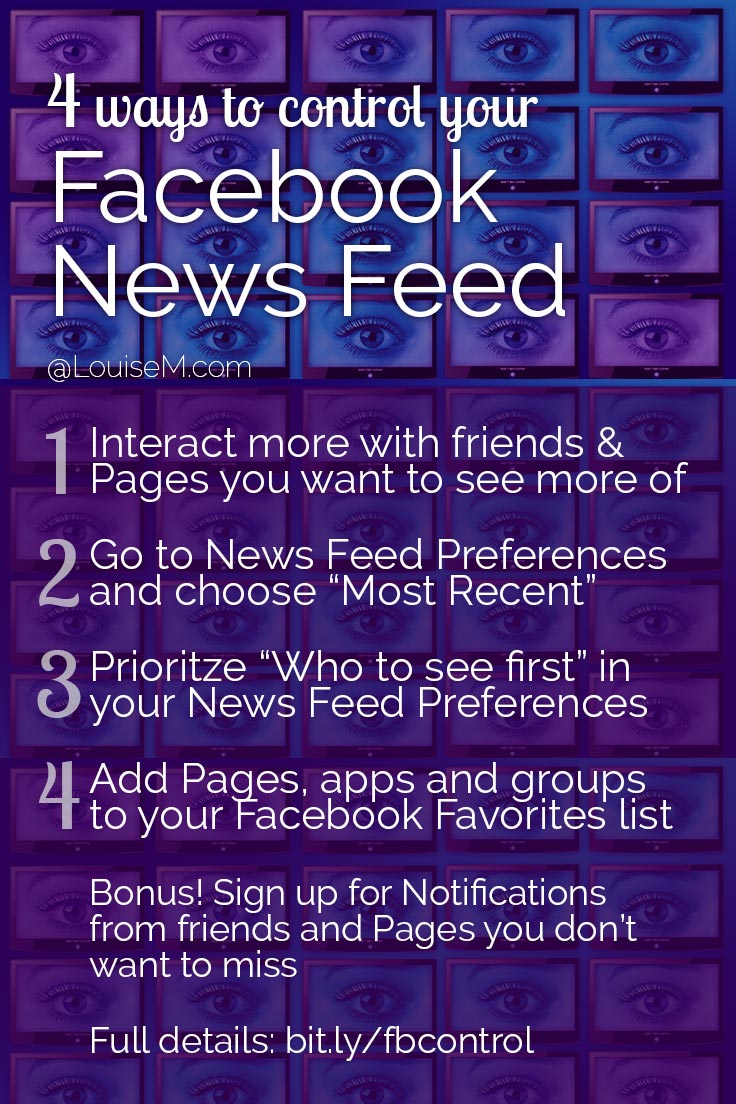
If there’s a friend or Page whose posts you want in your newsfeed, step one is to interact with the posts that you do see. If you’re not seeing any, go to their page and leave likes and comments on a few recent posts. I also suggest you never hide their posts (please don’t ever hide Fan Page posts – if you don’t like what they post, it’s much better for them if you “unlike” the Page).
Facebook Shows You the Most-Liked Posts, NOT Most Recent
The Facebook News Feed’s default is to show you the “Top Stories.” That means you’re going to see the posts that have a lot of comments and likes. Even worse, the more comments and likes they continue to get, the more likely you’ll see the same stories again at the top of your Facebook news feed.
But you can easily change this priority to “Most Recent.” On desktop, just go to the home page (newsfeed) and click the down arrow to the right of the word News Feed, then choose “Most Recent.” This easy fix doesn’t seem to be available on mobile. But, it’s just the beginning…

Now, Prioritize Who to See First in Your Facebook Feed
You can set more granular preferences by hovering the word News Feed, clicking the gear that appears at left, then clicking Edit Preferences. Or access News Feed Preferences from the down arrow at the far right in the top blue bar.
On mobile, tap More –> Settings –> News Feed Preferences.
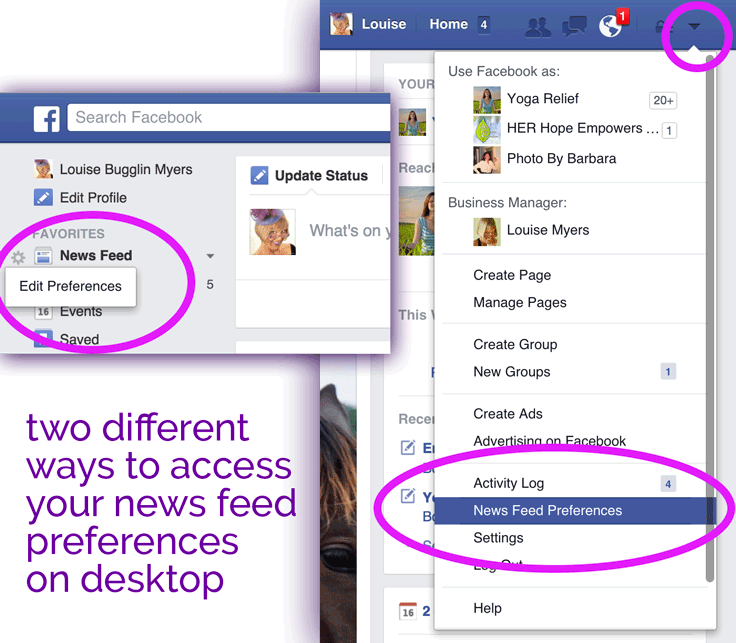
Then you can choose whose posts you want to see first – from Facebook friends and “liked” Pages.

Finally, Edit Your Facebook Favorites List
You can also add Pages, apps and groups to your Favorites list – but not individual friends.
To access your Favorites list, click Home on the top menu bar. Your Favorites list is located at the top of the left column.
To add a link to your Favorites list:
Click Home on the top bar.
In the left menu, find the link you’d like to add to your Favorites List. If you don’t see the link you’re looking for, hover over a category name (ex: Pages) and click More.
Hover over the link, click and select Add to Favorites.
To rearrange a link in your Favorites list:Hover over the link, click and select Rearrange
Click and drag the link to a new location in your Favorites list
Click Done at the bottom of your Favorites list
To remove a link from your Favorites list, hover over the link, click and select Remove from Favorites.Note: You can’t rearrange or remove News Feed from your Favorites list. source
To add Favorites on mobile, tap More –> Add Favorites in the Favorites section. Your Groups, Liked Pages, Interest Lists and friend categories will appear for you to select.
Bonus Tip: Get Notifications
If you really don’t want to miss a friend’s or Page’s posts, get notified each time they post. Choose Notifications by hovering the Friends button for friends and the Liked button for Pages. When they post, you’ll get the same type of notification as when someone likes or comments on your posts – the red numbers at the top (desktop) or bottom (mobile) on the globe icon.
 To get notified when a friend posts on Facebook, hover the “Friends” button and click on “Get Notifications.”
If you’re a Fan Page owner / admin, I recommend you ask your Fans to choose Notifications, as it’s the only way to ensure they’ll see your posts. You can create a “how-to graphic” like the one below. Do this only if you post less than twice daily, and provide high quality content. Otherwise, you’ll end up annoying them with too many notifications
 To get notified when a Fan Page posts on Facebook, hover the “Liked” button and click on “Notifications.”
Over to You
Share this post with a friend if you found it useful! Let us know in a comment if you have any more Facebook Newsfeed tips.
{loadposition user99}


Leave a comment